VAT Calculator
VAT Calculator: add or remove VAT instantly
Working out VAT is easy when you know the rate, but the calculation can get confusing when a price already includes VAT. If you are checking an invoice, setting a selling price, preparing a quote, or simply trying to find the VAT portion of a total, the number you need is not always calculated in the same way.
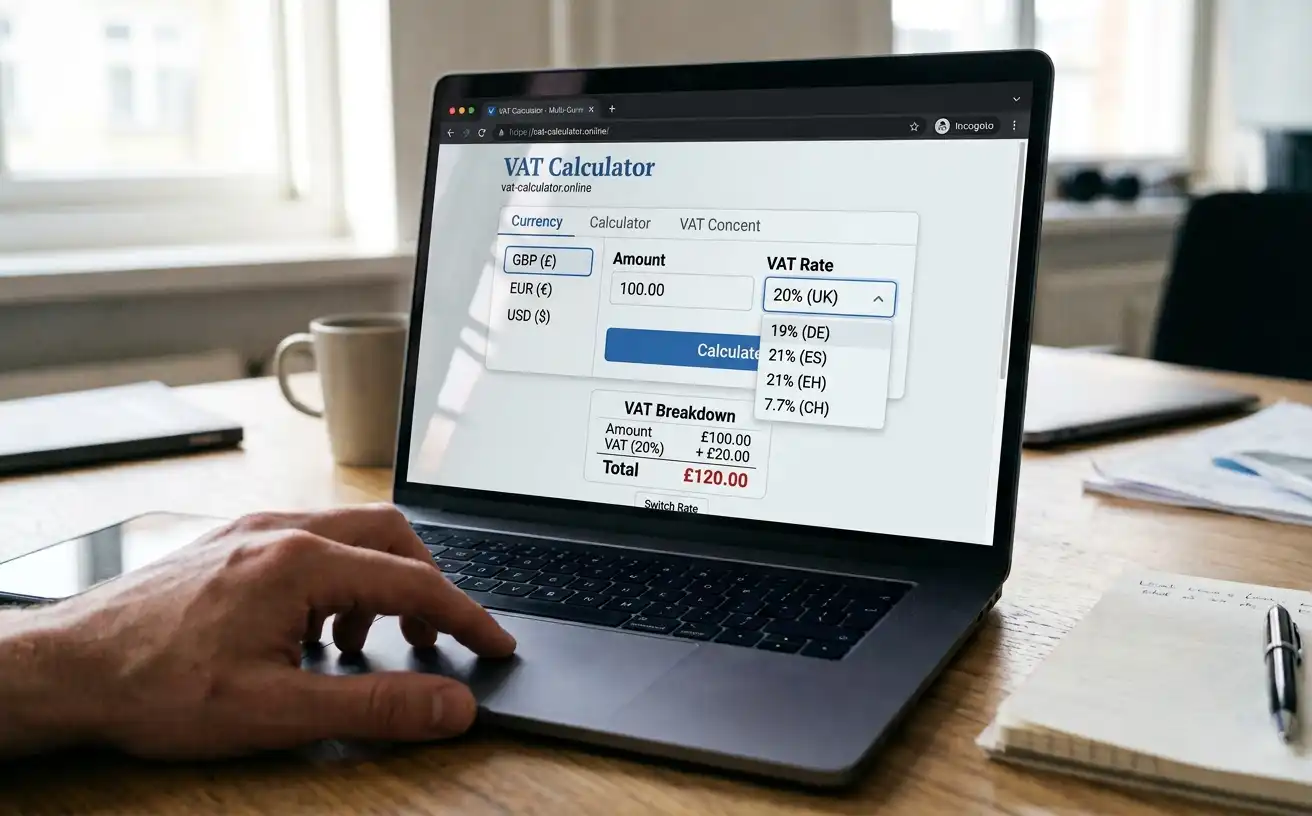
This VAT Calculator lets you work with both sides of the calculation. Enter a price and VAT rate to see how much VAT to add and what the final price will be. If the amount already includes VAT, you can also work backwards to find the original price and the VAT included in it. You can enter the rate that applies to your calculation rather than relying on a single fixed percentage. For UK-specific sums, our UK VAT calculator applies the standard UK rates.
The calculations are also explained below the tool, so you can see where each result comes from. This includes the standard formulas for adding and removing VAT, along with the common 20% VAT shortcut and when it should be used. Our guide to how to calculate VAT walks through each formula step by step.
Using the Calculator
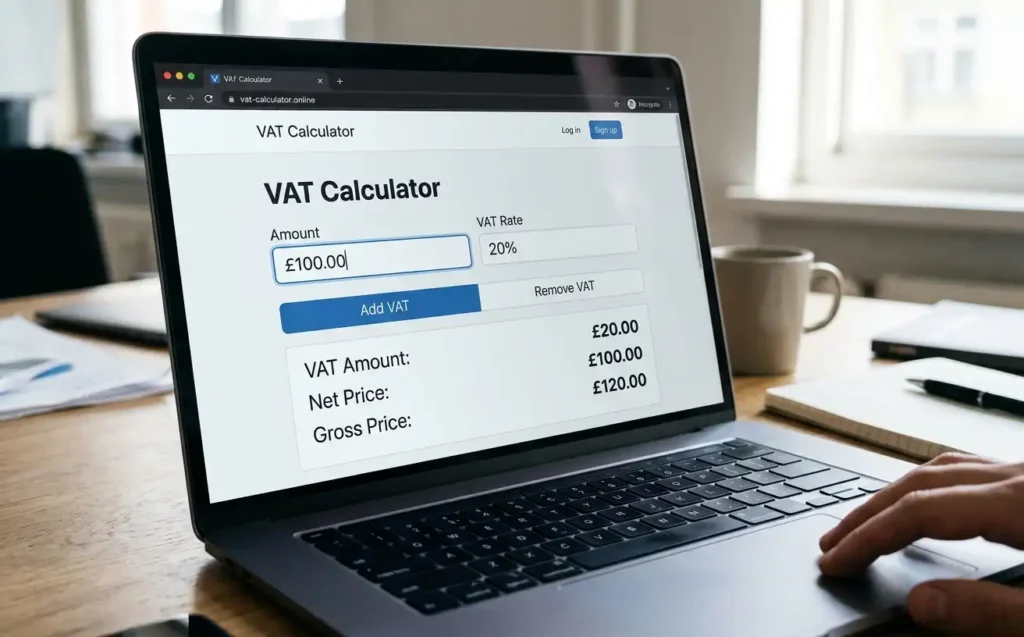
The calculator can be used in two common situations: adding VAT to a price that does not include tax, or working out the VAT already contained in a final price. Enter the amount you have, choose the VAT rate that applies, and select the calculation you need.
- Enter the amount before VAT if you want to find the final price after tax.
- Enter the VAT-inclusive amount if you want to separate the VAT from the total.
- Enter the VAT rate that applies to the goods or service.
- Choose Add VAT when you are starting with a net price.
- Choose Remove VAT when the amount already includes VAT.
- Check the VAT amount alongside the net and gross figures shown by the calculator.
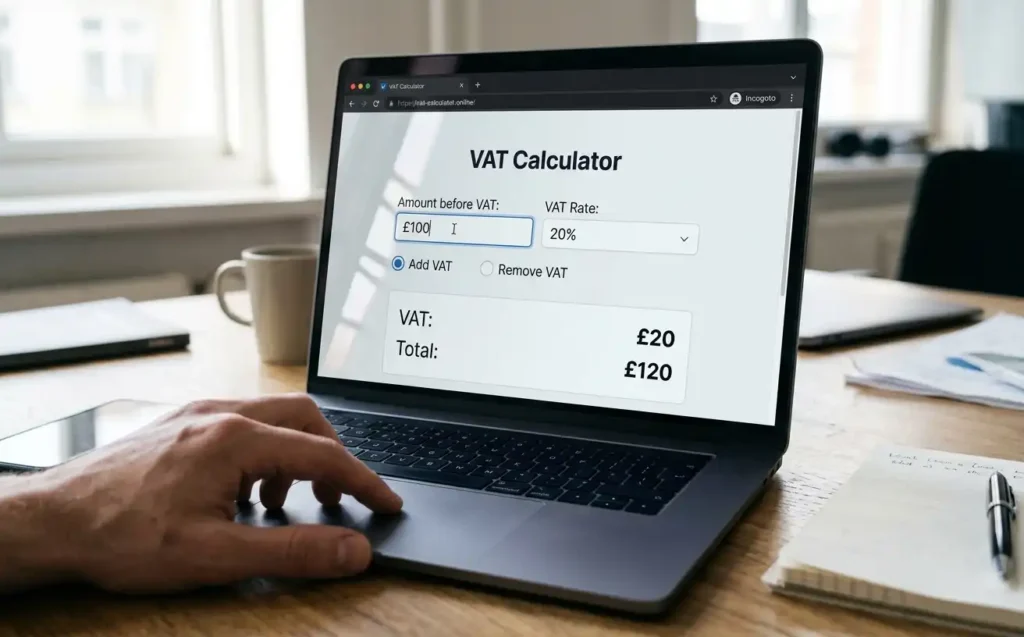
The direction of the calculation matters. Suppose a product is priced at £100 before VAT. Adding a 20% VAT rate gives £20 VAT and a £120 total. If £120 is the figure you already have and you need to find the amount before VAT, you cannot simply take 20% of £120. The calculator instead works backwards from the VAT-inclusive price to separate the original price and the tax portion.
This is also why entering the correct VAT rate is important. The same calculation method can be used with another rate, but the result will change. If you are checking an invoice or setting a customer price, use the rate that actually applies to that particular transaction rather than assuming every item has the standard rate.
Understanding the Calculation Results
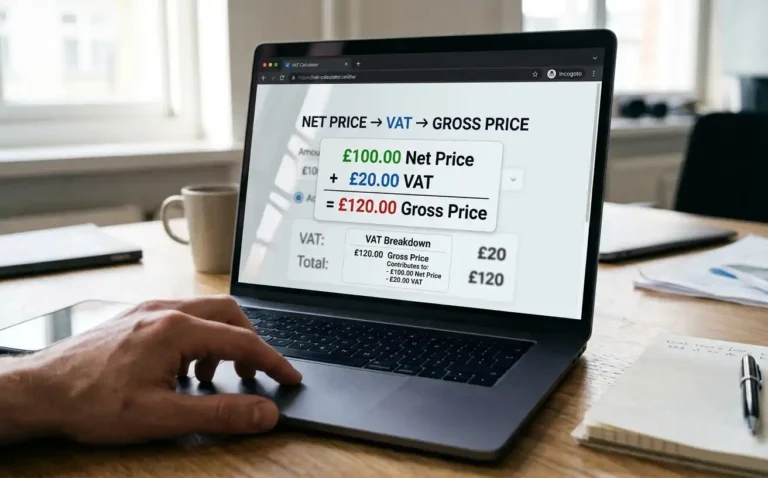
Once you enter your figures, the result tells you what the price looks like before and after VAT and how much of the amount is tax. The three figures to pay attention to are the net price, the VAT amount, and the gross price. The net price is the amount before VAT, the VAT figure is the tax itself, and the gross price is what you get after VAT has been added.
Take a price of £100 with VAT set at 20%. The VAT comes to £20, giving a gross price of £120. That is straightforward when you start with the £100 price. It works differently when the £120 total is the figure you already have. In that case, £20 is the VAT included in the total, while £100 is the price before VAT. You are not calculating 20% of £120 because the £120 already contains the tax.
This is particularly useful when you receive a VAT-inclusive price and need to understand what you are actually paying for the goods or service. Instead of guessing which part of the total represents VAT, you can use the result to separate the tax from the underlying price.
Supported VAT Rates and Currencies
The calculator can work with different VAT rates, so you are not tied to one percentage. For the rates that apply in Britain, see our UK VAT rates page. Enter the rate that applies to the price you are checking, whether you are adding VAT to a net amount or separating VAT from a VAT inclusive total. The currency itself does not change the VAT calculation. It simply tells you how the final amount should be expressed.
| Calculation mode | What you enter | What the result shows |
| Add VAT | Price before VAT and VAT rate | VAT amount and total price including VAT |
| Remove VAT | VAT-inclusive price and VAT rate | Price before VAT and VAT amount included in the total |
| VAT amount | Price and VAT rate | The VAT portion calculated from the relevant starting amount |
| Custom VAT rate | Amount and the applicable percentage | Results based on the rate you entered |
A VAT rate is not something you should guess from the currency you are using. A price in pounds, euros, or another currency can be subject to different VAT rules depending on the transaction and where the tax applies. For that reason, enter the rate relevant to your calculation and treat the currency as the way the monetary result is displayed, not as a factor in the VAT formula.
When a General VAT Calculator Is the Right Tool
A general VAT calculator is the right choice when the main thing you need is the VAT figure or the price after VAT. It works well when the VAT rate is already known and there is no unusual tax treatment to work out. If you only need one direction, the add VAT calculator handles net-to-gross sums and the reverse VAT calculator takes VAT back out of a total.
- Checking how much VAT will be added to a quoted price.
- Working out the VAT included in a price shown on an invoice or receipt.
- Turning a VAT exclusive price into a VAT-inclusive selling price.
- Taking VAT out of a total when you need the price before tax.
- Checking your own figures before sending an invoice or quote.
- Comparing what a price looks like at different VAT rates.
- Quickly checking a calculation without working through the formula by hand.
For a straightforward calculation, that is usually all you need. The calculator handles the arithmetic, while you supply the amount and the VAT rate that applies. It is a different situation when you are trying to decide whether VAT should apply in the first place, which rate a particular supply qualifies for, or how a more complicated transaction should be treated. Those are tax-rule questions rather than calculation questions, so a general calculator should not be used to make that decision for you.

FAQs
What’s the difference between adding VAT and removing VAT?
Adding VAT turns a net price (before tax) into a gross price (including tax). For example, £100 plus 20% VAT gives a gross price of £120. Removing VAT works the other way: it takes a gross price and separates the VAT, so £120 including 20% VAT gives a net price of £100 and £20 of VAT. Choose the direction that matches the price you are starting with.
Why shouldn’t I just take 20% off £120 to remove VAT?
Because the £120 already includes VAT, so 20% of £120 (£24) is too much. VAT is charged on the net price, not the gross price. To remove 20% VAT correctly, divide the gross price by 1.20: £120 ÷ 1.20 = £100 net, and the VAT is £120 − £100 = £20. Simply taking 20% off the gross would wrongly leave you with £96.
Which VAT rate should I use?
Use the rate that applies to the goods or services: the UK standard rate is 20% for most things, the reduced rate is 5% (for example, domestic energy and some renovation work), and some items are zero-rated at 0% (such as most food and children’s clothes). Check the supplier’s invoice or HMRC guidance, and confirm with your accountant if you are unsure.
Does the currency change the VAT calculation?
No. The maths is identical whether the price is in pounds, euros, or dollars. VAT is simply a percentage of the amount. Only the VAT rate and whether the price is net or gross affect the result, never the currency symbol.
What is the difference between a net price and a gross price?
A net price excludes VAT, while a gross price includes it. If a supplier quotes £100 net at 20% VAT, you will pay £120 gross. If a receipt shows £120 gross including 20% VAT, the net price is £100 and the VAT is £20. Use ‘add VAT’ on a net price and ‘remove VAT’ on a gross price.
How do I know whether a price includes VAT?
Business prices are often quoted net (excluding VAT), especially between VAT-registered businesses, while consumer prices usually include VAT by law in the UK. Check the quote or invoice, it should state whether VAT is included. If a VAT amount is shown separately, the headline price is usually net.
Final Thoughts
A VAT calculation becomes much easier once you know what the number in front of you actually represents. A price before VAT, a VAT inclusive total, and the VAT amount are three different figures, and the calculator lets you move between them without doing the maths from scratch.
The main thing to get right is the starting point. Use the add VAT calculation when you have a price before tax. Use the remove VAT calculation when VAT is already included in the total. Enter the rate that applies to your calculation, and remember that the currency changes the way the amount is expressed, not the underlying VAT calculation.
For everyday jobs such as checking an invoice, pricing a product, preparing a quote, or working out the tax in a total, that is usually enough. If the difficult part is deciding which VAT rules or rate apply to a transaction, that is a separate question from calculating the amount. Once you know the correct rate and starting figure, what VAT amount do you need to calculate?